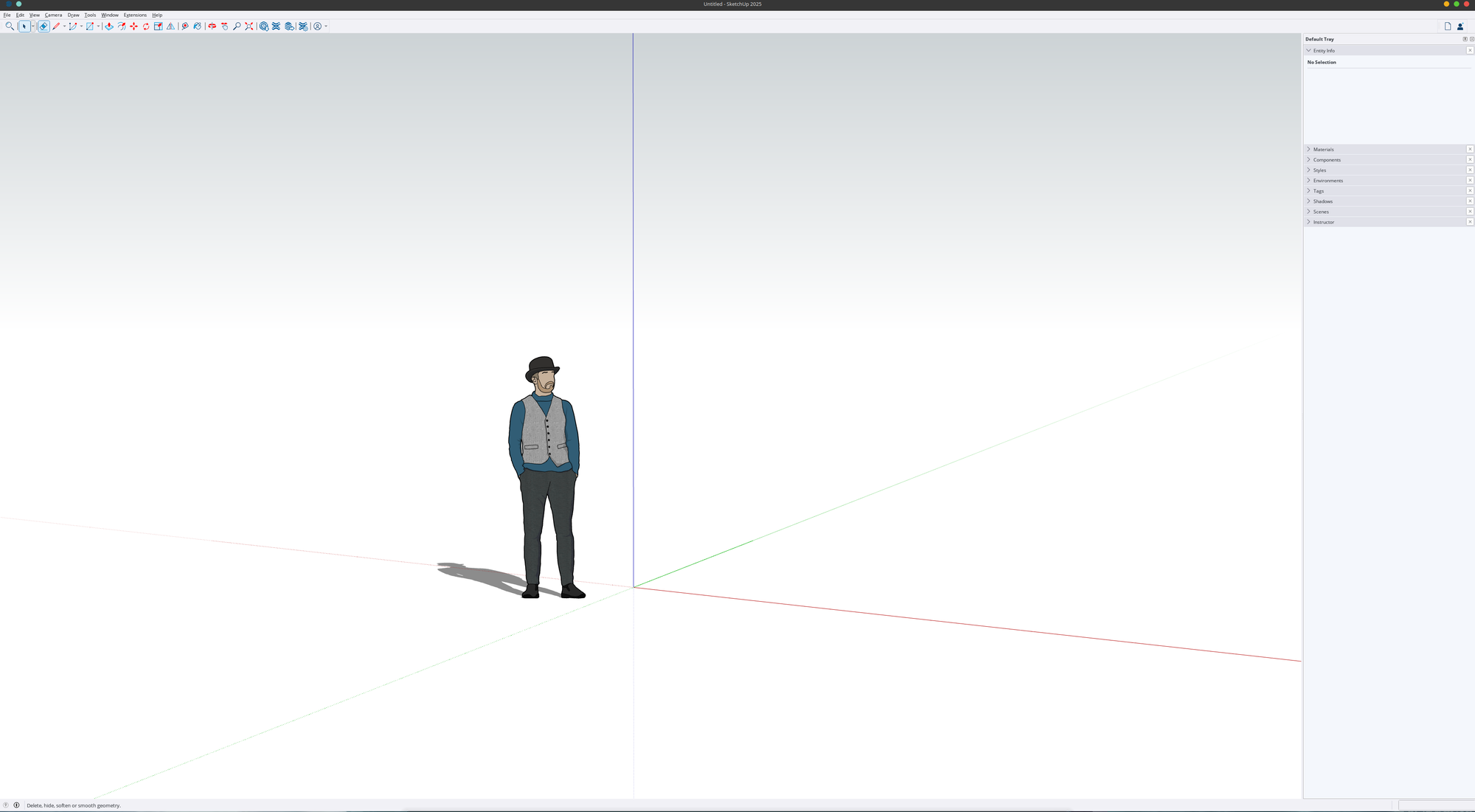
How to run SketchUp 2025 on Linux using Steam and GE Proton
Introduction
The last version of SketchUp known to work on Linux was the 2017 release. This blog post is an early draft documenting how to install and run SketchUp 2025 on Linux using Steam and GE-Proton.
A working Windows installation of SketchUp is required, as the SketchUp installer fails when run through Proton. The workaround involves copying files from an existing Windows installation and applying Proton configuration changes.
Ideally, someone with deeper knowledge of these tools will refine this draft into something better.
Prerequisites
A working Windows installation of SketchUp 2025.
Step-by-Step Guide
Step 1: Enable Steam Play
Install Steam and enable Steam Play for all titles as per: https://itsfoss.com/steam-play/
Step 2: Install GE-Proton
Download GE-Proton10-25 from https://github.com/GloriousEggroll/proton-ge-custom/releases and extract it into:
~/.var/app/com.valvesoftware.Steam/.local/share/Steam/compatibilitytools.d/
…or wherever Steam installs compatibilitytools.d on your distro. Restart Steam once extracted.
Step 3: Create a Dummy Non-Steam Game
Create a dummy non-Steam game using this path as the executable:
/usr/bin/ls
Step 4: Set Compatibility Layer
Locate the "ls" app in your Steam library and configure the GE-Proton10-25 compatibility layer for this app.
Step 5: Monitor the Proton Log
On the command line, run:
tail -f ~/.var/app/com.valvesoftware.Steam/.local/share/Steam/logs/compat_log.txt
Use find ~/ -name compat_log.txt if the file is in a different path.
Step 6: Trigger Proton Environment Creation
Run the dummy app to ensure the Proton environment is created for this app.
Step 7: Note Your App ID
The tail command should show something similar to:
OnAppLifetimeNotification: release session(s) for appID
(i.e., OnAppLifetimeNotification: release session(s) for appID 3255798437, note your app ID, as this will be your app ID.)
Step 8: Navigate to the Install Directory
Change your current directory to:
.var/app/com.valvesoftware.Steam/.local/share/Steam/steamapps/compatdata/[YOUR APP ID]/pfx/drive_c/Program Files
…or wherever Steam installs your apps.
Step 9: Copy SketchUp Files
Copy the contents of your Windows-installed SketchUp directory to the directory above.
Step 10: Install Dependencies
Run the following commands:
flatpak run com.github.Matoking.protontricks [YOUR APP ID] mfc140 vcrun2019 corefonts d3dx9_43 d3dcompiler_43 uiautomation
flatpak run com.github.Matoking.protontricks [YOUR APP ID] win10
Step 11: Navigate to the SketchUp Directory
~/.var/app/com.valvesoftware.Steam/.local/share/Steam/steamapps/compatdata/[YOUR APP ID]/pfx/drive_c/Program Files/SketchUp 2025/SketchUp
Step 12: Copy Missing DLLs
Copy the following files, for whatever reason, they are not found despite installing vcrun2019:
cp ../../../windows/system32/msvcp140*.dll ./
cp ../../../windows/system32/vcruntime140*.dll ./
Step 13: Run SketchUp
export WINEPREFIX=~/.var/app/com.valvesoftware.Steam/.local/share/Steam/steamapps/compatdata/[YOUR APP ID]/pfx
PROTON_USE_WINED3D=0 DISABLE_VK_LAYER_VALVE_steam_overlay_1=1 WINEDEBUG=+loaddll ~/.var/app/com.valvesoftware.Steam/.local/share/Steam/compatibilitytools.d/GE-Proton10-25/files/bin/wine64 SketchUp.exe
Important Note on Rendering
SketchUp's new rendering engine requires DX12, which is already provided by Proton. The env var PROTON_USE_WINED3D=0 ensures that this version of DirectX is used.
Troubleshooting: Corrupt DLL Errors
If you see errors similar to the below, it means msvcp140*.dll is somehow corrupt. Copy it from somewhere else:
0024:err:module:import_dll Library MSVCP140_1.dll (which is needed by L"C:\\Program Files\\SketchUp 2025\\SketchUp\\Qt6Core.dll") not found
0024:err:module:import_dll Library Qt6Core.dll (which is needed by L"C:\\Program Files\\SketchUp 2025\\SketchUp\\Qt6Gui.dll") not found
0024:err:module:import_dll Library MSVCP140_1.dll (which is needed by L"C:\\Program Files\\SketchUp 2025\\SketchUp\\Qt6Gui.dll") not found
0024:err:module:import_dll Library MSVCP140_2.dll (which is needed by L"C:\\Program Files\\SketchUp 2025\\SketchUp\\Qt6Gui.dll") not found
0024:err:module:import_dll Library Qt6Gui.dll (which is needed by L"C:\\Program Files\\SketchUp 2025\\SketchUp\\Qt6Widgets.dll") not found
0024:err:module:import_dll Library MSVCP140_1.dll (which is needed by L"C:\\Program Files\\SketchUp 2025\\SketchUp\\Qt6Core.dll") not found
0024:err:module:import_dll Library Qt6Core.dll (which is needed by L"C:\\Program Files\\SketchUp 2025\\SketchUp\\Qt6Widgets.dll") not found
Step 14: Configure Steam Launch
Finally, rename the "ls" app to "SketchUp 2025" and set the following in Steam:
- Target:
/YOUR HOME DIRECTORY/.var/app/com.valvesoftware.Steam/.local/share/Steam/steamapps/compatdata/YOUR APP ID/pfx/drive_c/Program Files/SketchUp 2025/SketchUp/SketchUp.exe - Start In:
/YOUR HOME DIRECTORY/.var/app/com.valvesoftware.Steam/.local/share/Steam/steamapps/compatdata/YOUR APP ID/pfx/drive_c/Program Files/SketchUp 2025/SketchUp/ - Launch Options:
PROTON_USE_WINED3D=0 DISABLE_VK_LAYER_VALVE_steam_overlay_1=1 WINEDEBUG=+loaddll %command%
Final Thoughts
SketchUp is a Qt app and a Linux build should be possible. Ideally, as Linux adoption continues to grow, Trimble would ensure it runs smoothly with Steam and Proton, or release a native Linux version. Otherwise, in their quest to abandon Windows, users will increasingly turn to popular alternatives like FreeCAD or OnShape.
I spent one hour getting this to work and the result is a working setup and a hacky tutorial. Would be interesting to have someone with more knowledge of Proton's internals improve it.
Screenshot
Here is a screenshot of SketchUp 2025 on Linux (Fedora Kinoite 43):